CNC Tube Cutting Software: Nesting, CypTube Settings and Common Errors
By the PCL Group engineering team, Jinan · Updated 2026-10-29
Short answer
- Tube cutting software has two parts: CAM on the office PC (import, nesting, toolpath) and the control on the machine (CypTube, FSCUT tube controllers).
- Send STEP or IGES solids of each tube part; flat DXF files lose the faces and are only useful for simple end cuts.
- Nesting decides material yield: common-line cuts, filling the remnant with short parts and grouping by cut order typically matter more than cutting speed.
- Most scrapped tube comes from a few causes: wrong section in the library, weld seam ignored, lead-ins on the part edge and parts dropping before they are cut free.
On this page
- Where the software sits
- Files: what to send and what goes wrong
- From model to program, step by step
- Nesting: where the material is saved
- Cutting strategies set in the software
- CypTube on the machine: the settings that matter
- Six mistakes that scrap tube
- Choosing software with a tube laser
- Machines mentioned in this article
- FAQ
Where the software sits
When people search for CNC tube cutting software they usually mean one of two programs, and it helps to keep them apart:
| CAM / nesting software | Machine control | |
|---|---|---|
| Runs on | Office PC | The machine’s CNC |
| Job | Import 3D parts, recognise the section, nest parts along the bar, generate toolpaths and cut order | Run the program, centre the tube, control the chucks, laser, gas and height sensing |
| Examples | TubesT, Lantek Flex3d Tubes, Radan Radtube, SigmaTUBE | CypTube and FSCUT tube controllers |
| Output | NC program and parts report | Cut parts, logs, remnant data |
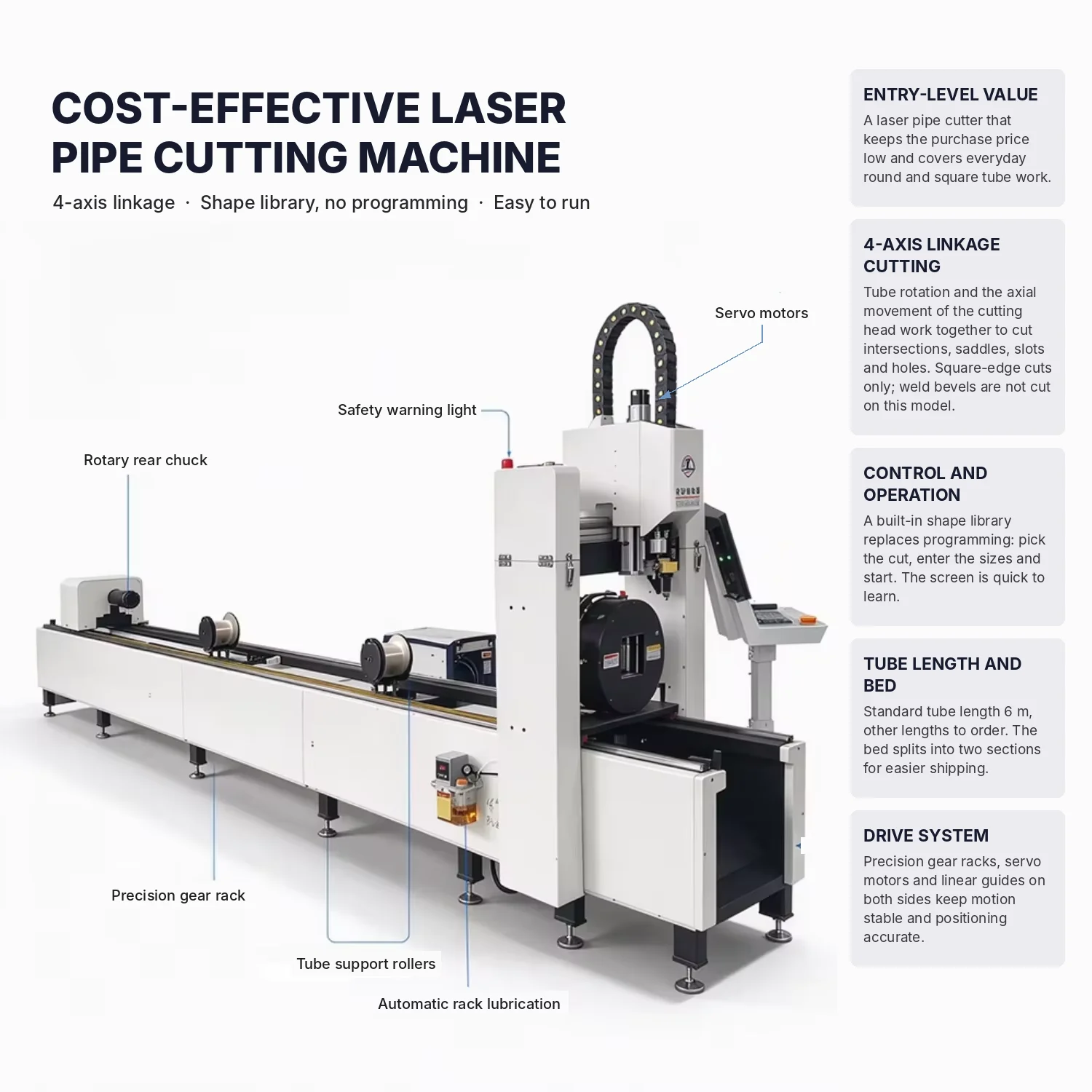
On PCL tube lasers the control is CypTube or FSCUT. Simple parts can be built directly at the machine from its shape library; anything with intersections, several features on different faces or a nesting job of mixed parts is better prepared in CAM, so the machine keeps cutting while the next job is programmed.
Files: what to send and what goes wrong
| Format | Use | Watch out for |
|---|---|---|
| STEP (.stp, .step) | First choice for every 3D tube part | Export solids, one part per file or a clean assembly |
| IGES (.igs) | Works with almost every CAM | Surface models can arrive with gaps; check the section is closed |
| SAT / Parasolid | Clean solids from many CAD systems | Not read by every package |
| SolidWorks weldments, Inventor frames | Export each member as STEP | Trim and extend features must be applied before export |
| DXF / DWG | Flat drawings of hole patterns or end shapes | No 3D faces; the programmer must rebuild the part |
| DSTV (NC1) | Beams and open sections from Tekla or Advance Steel | Mainly for H-beam and channel, not round tube |
The most common file problem is a tube modelled with the wrong section: a rectangular tube drawn without corner radii, or a round tube faceted into a polygon. The CAM matches the solid against its section library; if it cannot, holes near corners and intersections come out in the wrong place. Model with the real outside size, wall and corner radius, or pick the section from a standard library in CAD.
From model to program, step by step
- Import and recognise. The CAM reads the solid, finds the tube axis and matches the section: round, square, rectangular, oval, channel, angle or a custom profile.
- Set the reference. Choose the face that carries the weld seam and the face that faces up when loaded. This is what puts a slot on the right side of the part.
- Assign technology. Material and wall give the cutting parameters: power, speed, gas, pressure and focus, taken from the machine’s cutting library.
- Lead-ins and pierces. Holes start inside the scrap; end cuts start on the waste side; long contours get a short lead-out so the end of the cut does not leave a mark.
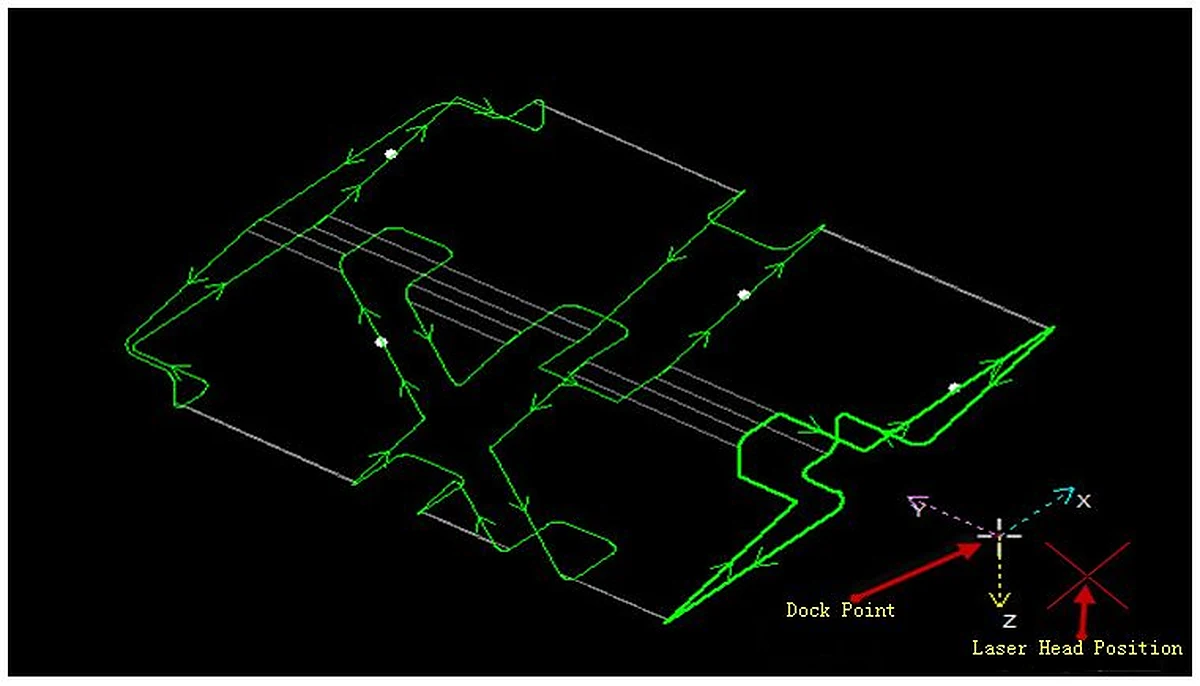
- Nest on the bar. Parts are arranged along the stock length, with common-line cuts where two parts share an end and short parts filling the remnant.
- Cut order. Inner features before the part is separated; heavy parts separated last; parts that will drop are supported or held by micro-joints.
- Simulate. Check the chuck and support positions against the head, especially for short parts and the last part on the bar.
- Post and send. The post-processor writes the program for CypTube or FSCUT; the operator loads the tube, the control finds the centre and starts.
Nesting: where the material is saved
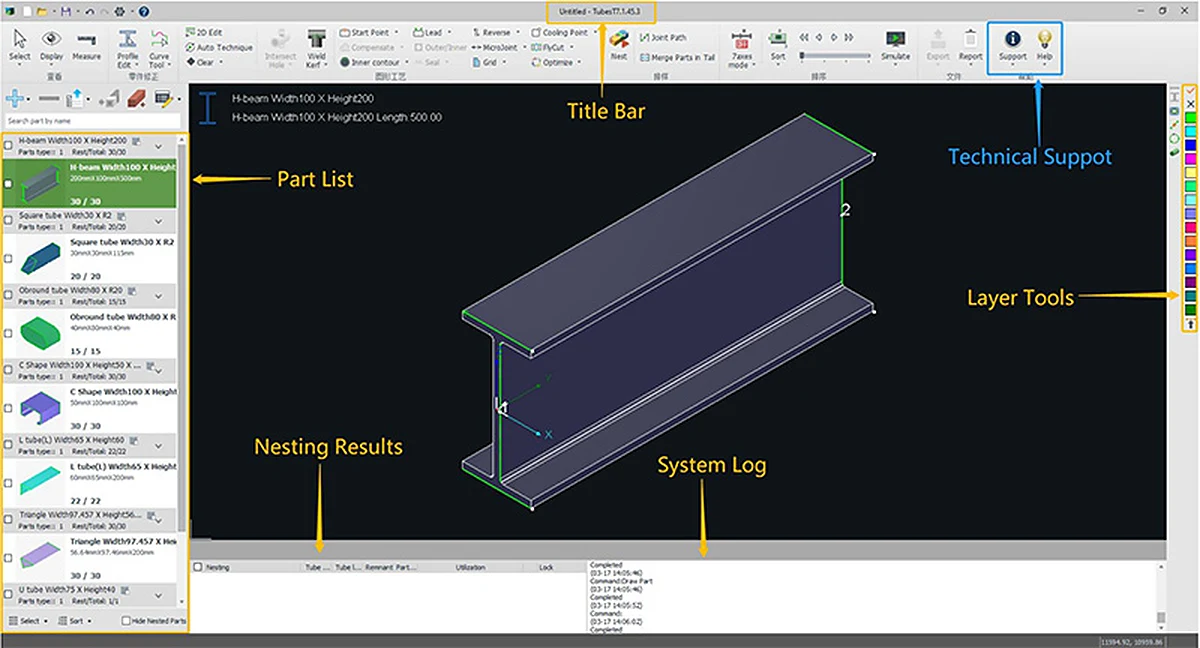
In TubesT, the nesting package used with CypTube, these functions sit on one toolbar: Nest places the part list on the stock bars, Joint Path links parts with common-line cuts, Merge Parts in Tail fills the remnant, and Microjoint, FlyCut and Cooling Point set the cutting strategy for each part.
On tube the cost is in the bar, not the laser time. A worked example on a 6,000 mm bar of 50 × 50 × 2 mm tube:
| Nest | Parts | Length used | Yield |
|---|---|---|---|
| One part type, separate end cuts | 9 × 640 mm | 5,760 mm | 96.0% |
| Same, plus a short bracket in the remnant | 9 × 640 + 1 × 180 mm | 5,940 mm | 99.0% |
The extra part is only possible if the machine can cut close to the end of the bar. On a two-chuck machine the length held by the rear chuck sets that limit; on a three-chuck LT3 the tail is zero and the whole bar is available. Yield figures here ignore kerf, which on thin tube is a few tenths of a millimetre per cut.
- Common-line cut. Two parts with square or matching ends share one cut. It saves a cut and a strip of tube each time, and on a 6 m bar of short parts the time saving is noticeable.
- Mixed nesting. Different part numbers of the same tube are nested together; the software fills gaps with whatever fits.
- Remnant handling. Remnants above a set length are logged and offered for the next job instead of going to scrap.
Cutting strategies set in the software
| Strategy | What it does | Where it helps |
|---|---|---|
| Flying cut | Cuts rows of holes without stopping between them | Perforated tube, racking slots |
| Micro-joints (tabs) | Leaves small bridges so a part or slug does not fall into the tube | Large cut-outs, thin walls |
| Corner treatment | Slows down or loops at sharp corners | Thick walls, square notches |
| Bevel compensation | Tilts the head to keep the cut square to the tube surface, or cuts a weld bevel | Intersections, bevel head option |
| Seam avoidance | Keeps holes and pierces off the weld seam | Welded square and round tube |
| Edge finding | Measures the real tube before cutting | Twisted or out-of-size tube |
CypTube on the machine: the settings that matter
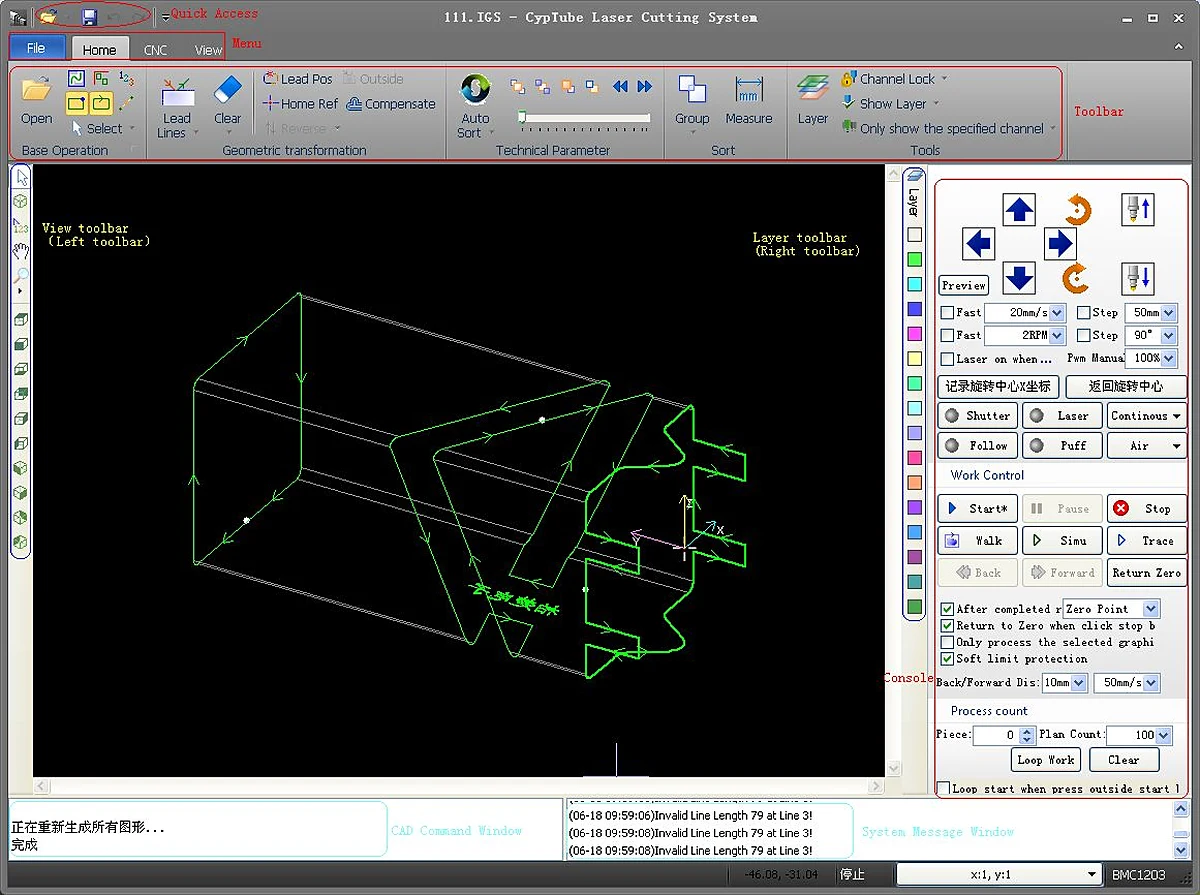
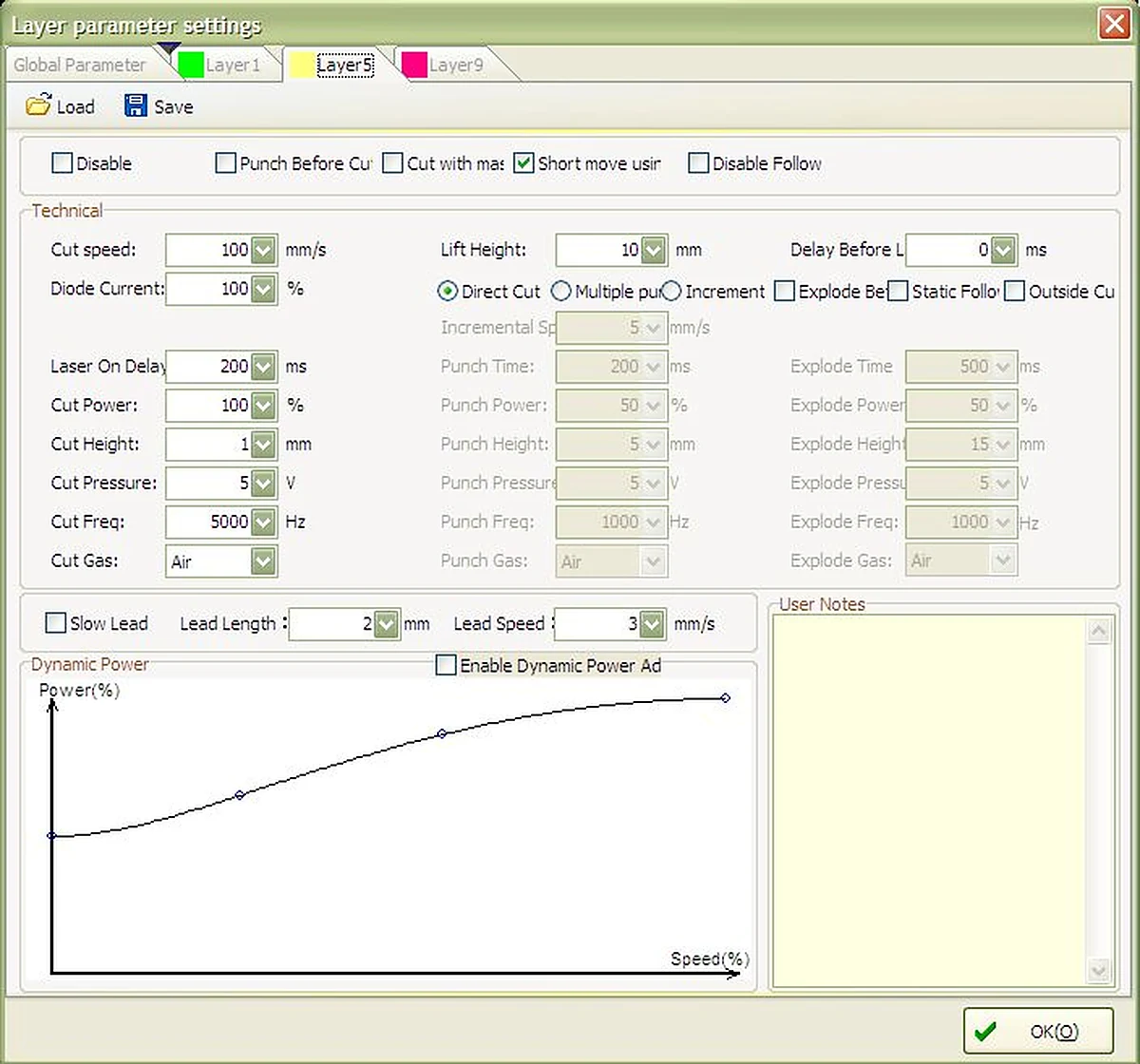
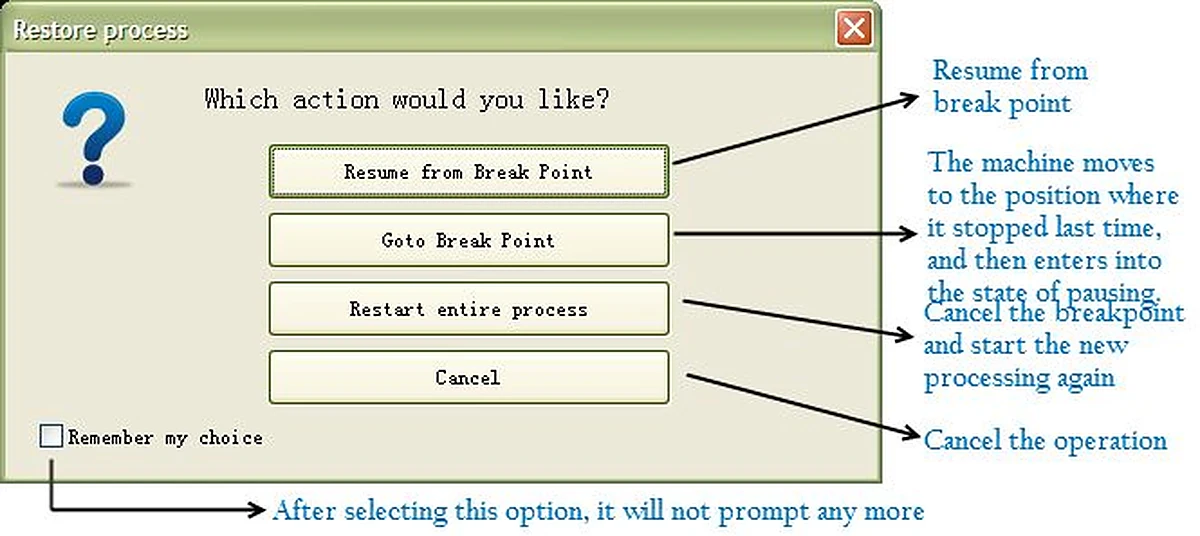
CypTube, from Friendess (screenshots below are from its documentation), is the tube control on most PCL tube lasers. The operator’s manual runs to dozens of pages; these are the settings that decide whether a first part is good.
| Setting | What it does | Practical tip |
|---|---|---|
| Tube calibration | One-key levelness calibration and automatic search for the centre of rotation | Run it after a crash, a chuck service or a change to a very different tube size |
| Inner and outer contours | Imported IGES parts are sorted into outer cuts (the part edge) and inner cuts (holes and slots) | Re-run the sort after editing a part, or lead-ins and compensation point the wrong way |
| Kerf compensation | Offsets the path by half the kerf: outward on outer contours, inward on holes | Check hole size on the first part; a worn nozzle widens the kerf |
| Lead-ins | Automatic lead lines, from outside on outer contours and from inside on holes | Use the lead check before cutting to find leads that touch the part |
| Piercing mode | Direct, multi-stage or incremental piercing, each with its own power, frequency, gas, pressure and height | Thick walls: incremental piercing at low frequency keeps the nozzle clean |
| Layer parameters | Cutting speed, power, gas, pressure and height for each layer, with power following speed in corners | Put fine features on a separate layer with slower settings |
| Material library | Saves a complete parameter set for each material and wall | Save every good result; it is the shop’s real know-how |
| Breakpoint memory | Resumes after a stop from the exact point, or starts from any point in the program | Use it after a gas change or nozzle swap instead of scrapping the bar |
| Dry run | Runs the program without the laser | Do it on every new program to catch chuck and head collisions |
CypTube also runs on an ordinary Windows PC without the machine’s dongle, in a demo mode that does everything except drive the machine. Programmers can install it on a laptop, prepare and check jobs away from the machine, and carry the files across.
PCL customers can ask us on WhatsApp for the CypTube manual and parameter sheets that match the software version on their machine.
Six mistakes that scrap tube
| Symptom | Cause in the program | Fix |
|---|---|---|
| Holes slightly off on one face | Section modelled without corner radius | Use the real section from the library |
| Slot on the wrong side | Reference face or seam face not set | Define seam and load orientation |
| Burn mark on the part edge | Lead-in on the part, not the scrap | Move pierce to the waste side |
| Part drops and jams | Separated before inner features were cut | Change cut order or add micro-joints |
| Head or chuck alarm on the last part | No collision check near the chuck | Simulate the end of the bar |
| Frame does not close after bending | No bend allowance on V-notches | Add allowance in the notch feature |
Choosing software with a tube laser
Ask three questions before buying. Does the CAM read the files your designers already produce, without rebuilding parts? Does its post-processor support the exact control on the machine, so programs run without editing? And can the operator make simple parts at the machine from a shape library, so the office is not a bottleneck for one-off jobs? On PCL LT series and automatic loading machines, CypTube or FSCUT is supplied with the machine and operator training on the control is part of installation; tell us which CAM your office uses and we check the post-processor before delivery. For practical examples of what the software produces, see square tube laser cutting and steel channel laser cutting.
Have a pipe job in mind? Send the pipe size, wall and joint, and an engineer will tell you which method or machine fits.
Ask on WhatsAppMachines mentioned in this article
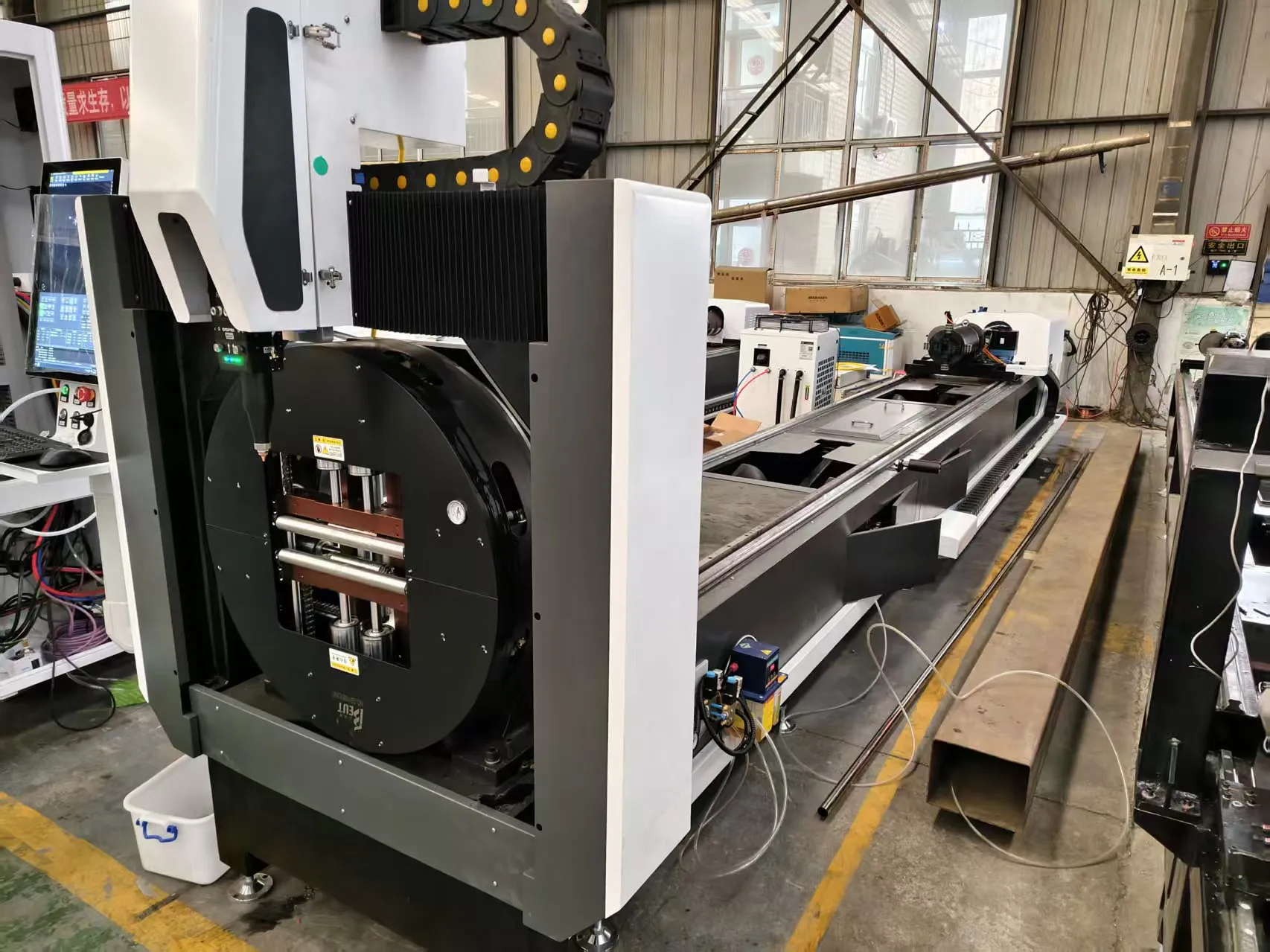
LT Series Tube Laser
CypTube or FSCUT control, shape library.
Compare all models →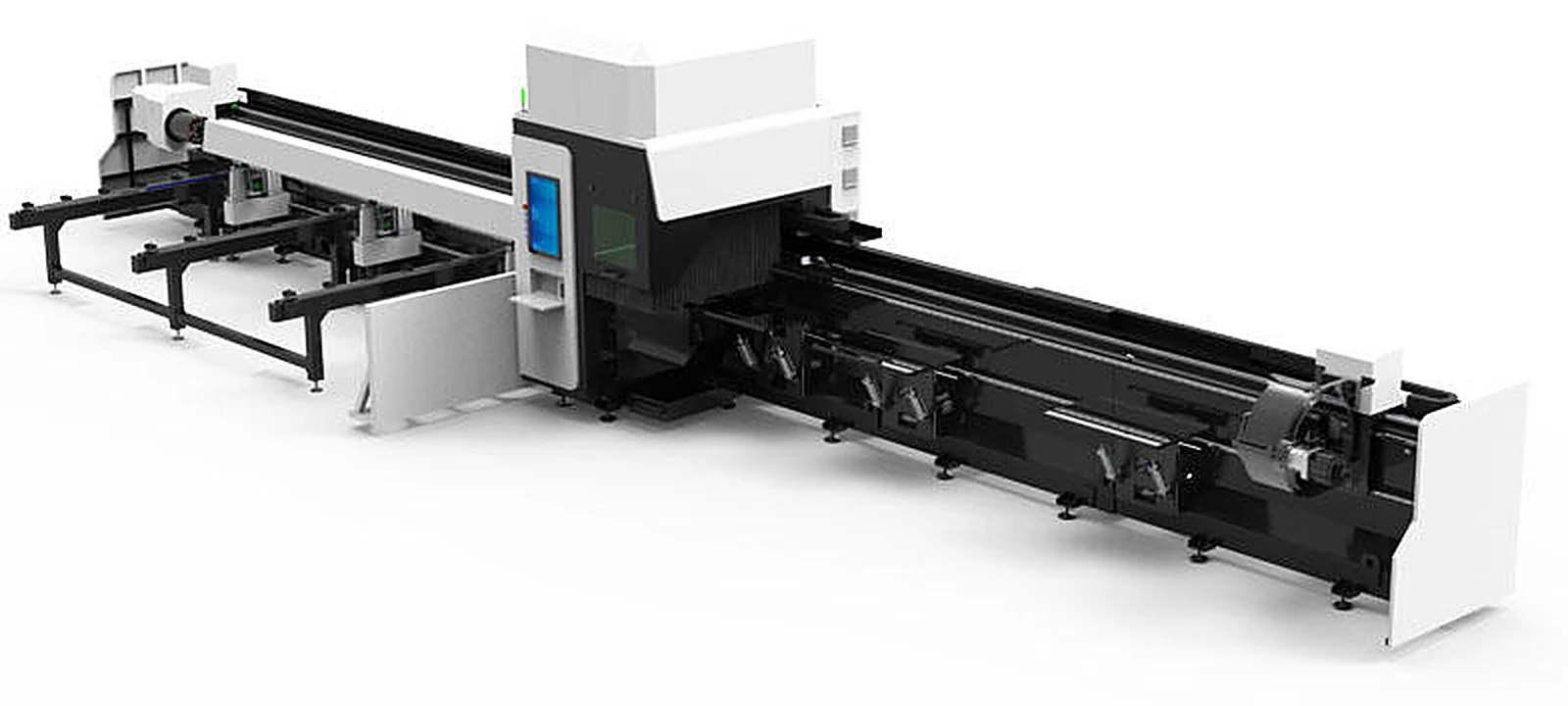
LT3 Three-Chuck Heavy Tube Laser
Zero tail: the whole bar is usable.
View machine →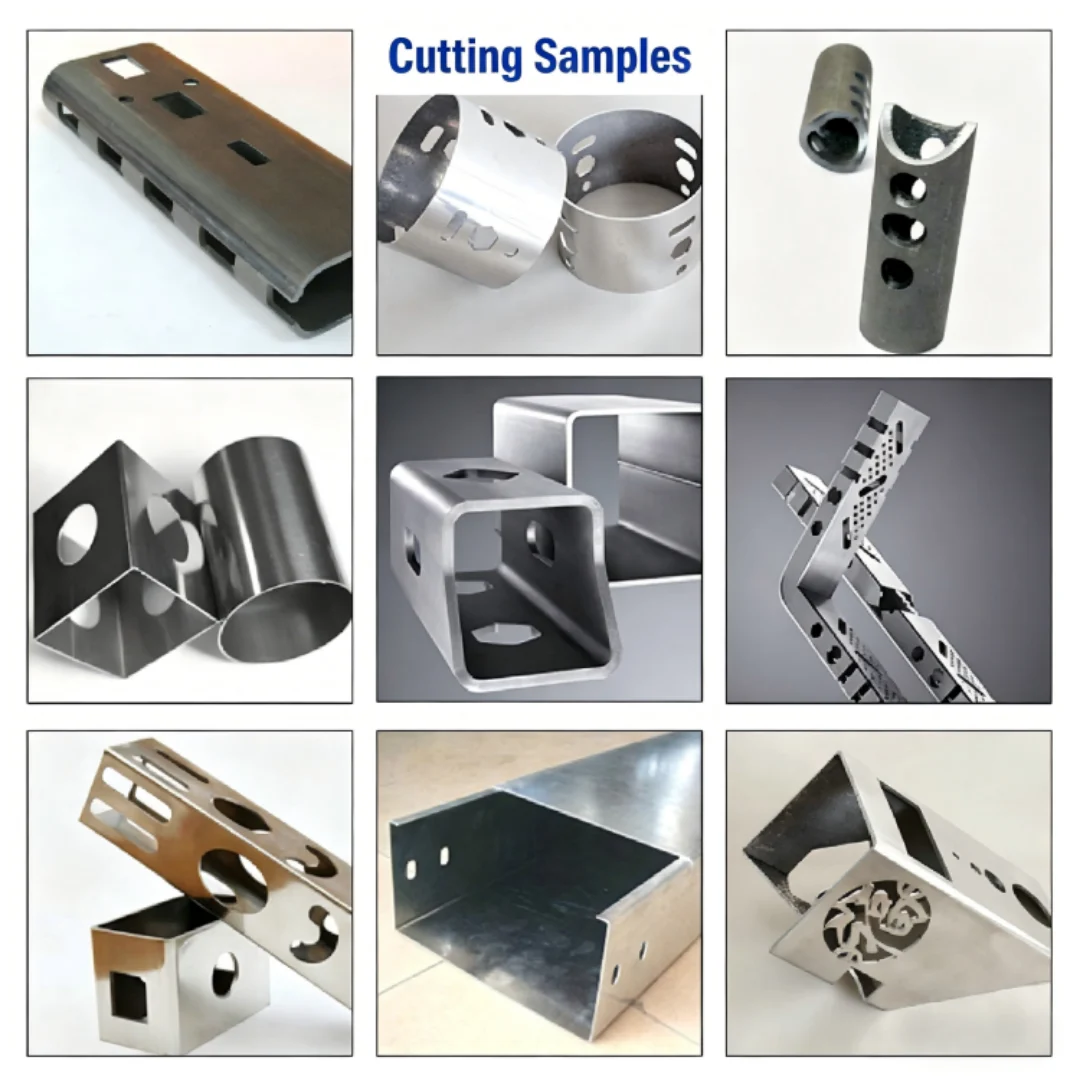
Square Tube Laser Cutting
Sizes, corner radius, V-notches.
View machine →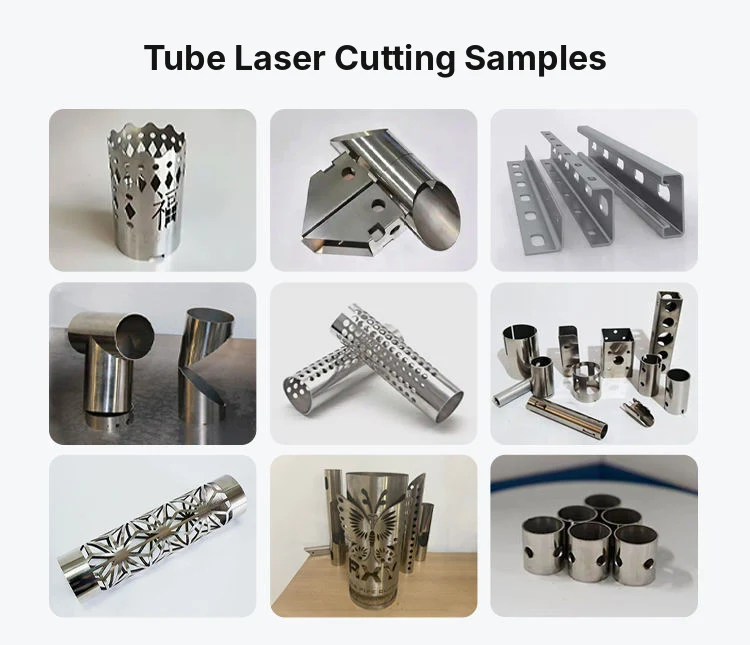
Steel Channel Laser Cutting
Channel sizes and machine choice.
View machine →FAQ
What software is used for CNC tube laser cutting?
A CAM package for import and nesting, such as TubesT, Lantek Flex3d Tubes, Radan Radtube or SigmaTUBE, and a machine control such as CypTube or FSCUT that runs the program.
What file format is best for tube cutting?
STEP solids, one part per file. IGES also works; DXF only describes flat views and needs the part rebuilt.
Can I program tube parts at the machine?
Yes, for standard parts. The control’s shape library builds holes, slots, notches and intersections from typed dimensions.
What is common-line cutting on tube?
Two parts that share an end are separated by one cut instead of two, saving tube and time.
How does nesting save material on tube?
By placing several parts on each bar, sharing cuts, and filling the remnant with short parts. On a three-chuck machine with zero tail the whole bar is usable.
What are micro-joints?
Small uncut bridges that hold a part or slug in place until the cut is finished, so it does not fall into the tube or jam the machine.
Why do holes come out in the wrong place on square tube?
Usually the tube was modelled without its corner radius, or the reference face was not set. Use the real section and define the seam face.
Can tube software cut bevels?
Yes, with a bevel head on the machine. The software tilts the head for weld bevels or to keep intersections square to the surface.
Does the software handle channel and angle?
Yes. Open sections are matched to their profile in the library; beams and channel can also be imported as DSTV files.
Where can I get the CypTube manual?
PCL customers can request the CypTube manual and parameter sheets for the software version on their machine by WhatsApp or email. The software maker, Friendess, also publishes documentation.
Can I program CypTube on a laptop?
Yes. Without the dongle CypTube runs in demo mode with all functions except machine control, so jobs can be prepared offline and transferred to the machine.
What are inner and outer cuts in CypTube?
Outer cuts follow the part edge and are compensated outward; inner cuts are holes and slots, compensated inward and led in from inside. CypTube sorts them automatically on import.
Is software training included with a PCL machine?
Operator training on the machine control is part of on-site installation, with remote support afterwards. For office CAM, tell us which package you use.